Setting up a custom faction
If you're trying to use WCS_LoadoutEditor with a custom faction, there's a small amount of setup you need to do in order to make sure your players can access their saved loadout slots, regardless of what kind of mission you're trying to run.
Overriding the LoadoutManager prefabs
-
Find the
LoadoutManager_Editorprefab in the resource browser. This will be located inArmaReforger/Prefabs/MP/Managers/Loadouts.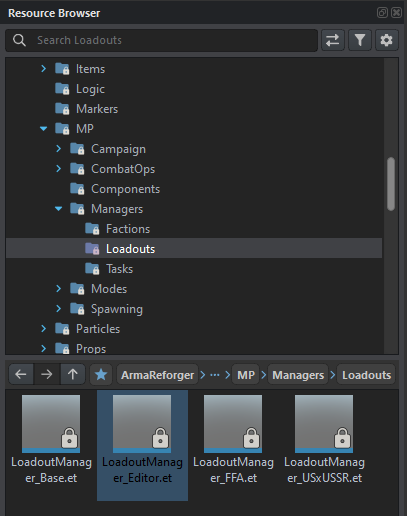
-
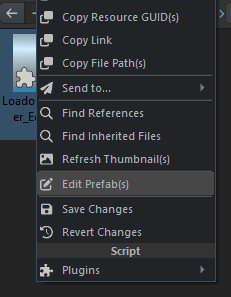
Right-click on the prefab and choose "Override in '...'".
-
Right-click on the new, overridden prefab, and click "Edit Prefab(s)".
Adding loadout slots for your faction
Once you're in the LoadoutManager prefab, we need to add our new loadout slots.
-
Click into the
SCR_LoadoutManagercomponent on the right side of the screen. -
Scroll down to "Loadout Manager", then "Player Loadouts".
-
Add a new item to the "Player Loadouts" list. Use the
SCR_PlayerArsenalLoadoutclass.- Set the Loadout Name to "Slot 1".
- Set the Loadout Resource to your faction's base loadout prefab.
- Ignore the Loadout Image.
- Set Affiliated Faction to your faction key. (This has to match exactly)
- Set the WCS Slot Id value to
Slot1exactly.
-
Duplicate the loadout slot we just created, and change the loadout name to "Slot 2". Then set the WCS Slot Id to
Slot2exactly. -
Duplicate the loadout slot we created, and change the loadout name to "Slot 3". Then set the WCS Slot Id to
Slot3exactly. -
Once you've added all three required slots, save the prefab.
All GM scenarios should now include WCS Loadout Editor slots for your custom faction.
The slots will only appear once a loadout has been saved to them, so don't panic if you only see the default loadout in the respawn menu. Spawn a weapons & equipment arsenal and make a quick test loadout, then save it and respawn. You should now see that the slot you saved it to is now available.